

Contact me if you need a pro
How to Change Favicon in WordPress: A Step-by-Step Guide for Beginners

How to Change Favicon in WordPress
Estimated Reading Time: 7 minutes
Key Takeaways
- Importance of Favicon: A favicon enhances brand visibility and contributes to a professional user experience.
- Multiple Methods Available: Use WordPress Customizer, WordPress.com settings, Gutenberg Block Editor, or a plugin to change the favicon.
- Image Specifications: Optimal image size for your favicon is 512×512 pixels.
Table of Contents
Why Change Your Favicon?
Before learning how to change your favicon in WordPress, it’s important to understand its significance. A well-chosen favicon enhances your brand’s visibility and contributes to a cohesive user experience. It is often the first impression users have of your site, appearing in bookmarks, search results, and browser tabs. A unique favicon helps establish your brand identity, making your site recognizable.
Method 1: Using the WordPress Customizer (Easiest Method)
One of the easiest ways to change your site’s favicon is by using the WordPress Customizer. This method is suitable for most WordPress sites and requires no additional plugins. Here’s how to do it:
- Log in to your WordPress dashboard – The first step is to get into your website’s backend, where all the magic happens.
- Navigate to Appearance > Customize – On the left sidebar, find the “Appearance” option and click on “Customize.” This will take you to the WordPress Customizer.
- Go to the Site Identity section – Within the Customizer, locate the Site Identity section. This is where you’ll find the option to upload your favicon.
- Upload your favicon image – It’s best to choose an image that measures 512×512 pixels for optimal compatibility. Click on the Site Icon option and upload your favicon image.
- Click Publish – After successfully uploading your favicon, don’t forget to click the Publish button to save your changes. Your new favicon should now appear in the browser tab!
If you already have a favicon and want to update it, simply click the Change Image button in the Site Icon section, upload your new image, and click Publish again. You can read more about this method here.
Method 2: Using Settings (WordPress.com Method)
If you are using WordPress.com, the steps to change your favicon are slightly different. Here’s how you can do it:
- Visit your site’s dashboard – Log into your WordPress.com account and head to your site’s dashboard.
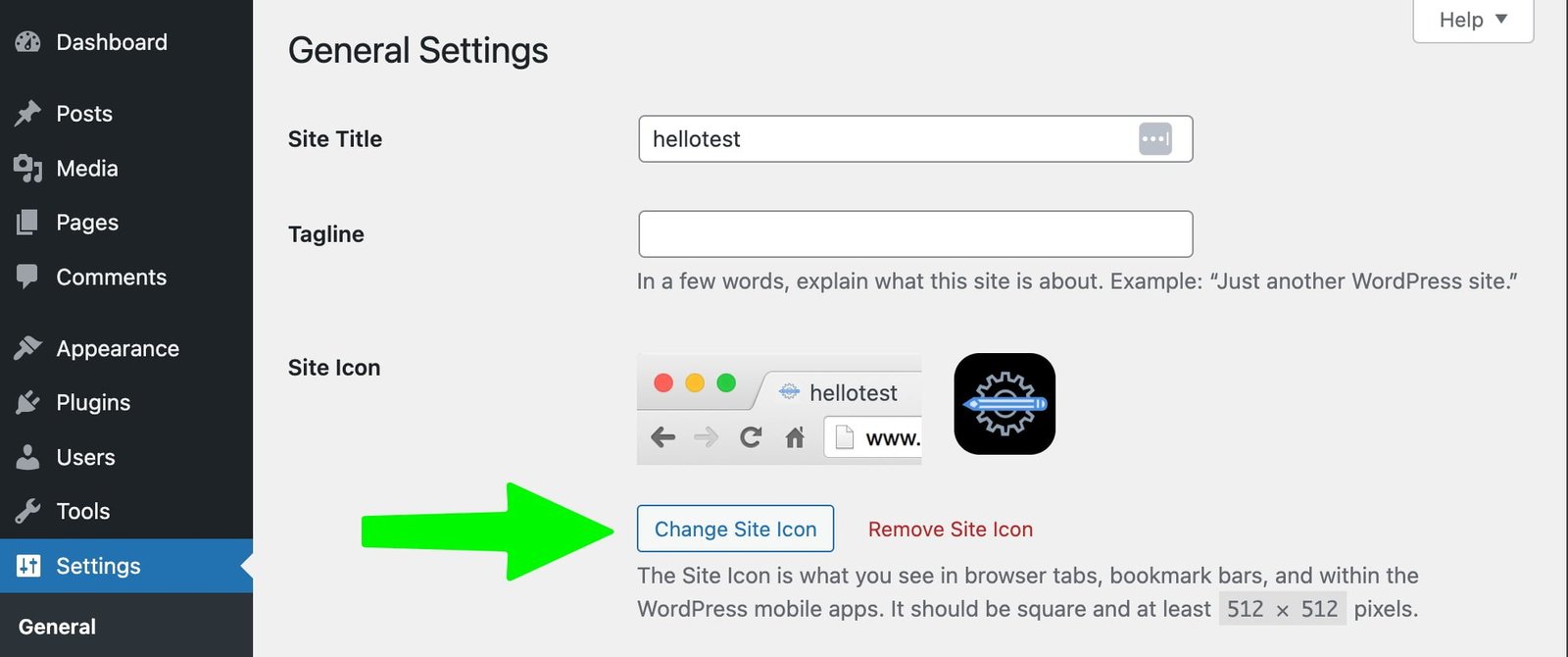
- Navigate to Settings > General – Find the “Settings” option in the left sidebar and click on “General.”
- Click the “Choose a Site Icon” button – In the General settings, look for the “Site Icon” section and click the “Choose a Site Icon” button. Upload your favicon image and save your settings. For detailed instructions, visit this link.
Method 3: Using the Gutenberg Block Editor
If you’re using a block theme and have WordPress 5.9 or later, you can change your favicon using the Gutenberg Block Editor:
- Access the full site editor – Log in to your dashboard and navigate to the full-site editor.
- Locate the header section and edit it – Click on the header section of your site to add your new favicon.
- Find the site logo or site icon block – Look for the block that handles the site logo or site icon. Typically found in the header area.
- Upload your favicon image – Upload your desired favicon image.
- Use the “Use as site icon” option in settings – Select the option to use this image as your site icon.
- Save and publish your changes – Click save and publish to ensure your new favicon is live. You can crop your site icon within the editor before applying it. For a walk-through video, check out this tutorial.
Method 4: Using a Plugin
For greater flexibility or automatic generation of multiple icon sizes, consider using a plugin like RealFaviconGenerator or All-in-One Favicon:
- Go to Plugins > Add New – In your WordPress dashboard, navigate to “Plugins” and click on “Add New.”
- Search for a favicon plugin – Type “RealFaviconGenerator” in the search bar to find the plugin.
- Click Install Now and activate the plugin – After finding the plugin, click on Install Now and then Activate.
- Go to the plugin’s settings page – Navigate to the settings page of the plugin after activation.
- Upload your favicon image – Follow the plugin’s instructions to upload your favicon image and customize your options.
- Save and activate your settings – Most favicon plugins, like RealFaviconGenerator, will automatically generate multiple icon sizes. Save your settings. For more info, visit this resource.
Image Specifications
Regardless of the method, it is crucial to upload a favicon image with dimensions of 512×512 pixels. This size ensures compatibility across devices and platforms. Using a different size might cause display issues or distortion.
Important Notes to Keep in Mind
You cannot remove the default WordPress favicon entirely; only replace it with your custom image. Ensure your favicon is specific to your brand. If you remove your custom favicon, the default WordPress logo will reappear. Most WordPress themes follow similar settings, simplifying the process across different themes.
Conclusion
Changing your favicon in WordPress is a simple yet impactful adjustment that enhances your site’s professional appearance and brand identity. Whether using the WordPress Customizer, Gutenberg Block Editor, WordPress.com specific settings, or a plugin, you have several easy options. A well-branded site icon can make all the difference in user engagement and recognition.
Now that you know how to change your favicon in WordPress, why not give it a try? Update your site’s appearance today, and let your favicon speak for your brand! Happy customizing!
For further insights into how the right type of website can boost your professional presence, check out Websites for Local Businesses: Maximizing ROI with the Right Type for Your Success. Additionally, to learn about performance optimizations that can complement your site design, visit How to Improve Website Speed for Better ROI of Professional Websites. If you’re interested in more on business growth strategies, explore Unlock Success with Custom Ecommerce Solutions: Maximizing ROI of Professional Websites as well.
Frequently Asked Questions (FAQ)
- How do I know if my favicon has been updated?
- After changing your favicon, clear your browser cache and reload your website. The new favicon should appear in the browser tab.
- Can I use any image as a favicon?
- It’s recommended to use a simple, recognizable image that represents your brand well. Ensure it’s 512×512 pixels for optimal display.
- What if my theme doesn’t support favicon updates?
- You can use a plugin to manage favicons if your WordPress theme doesn’t provide functionality for favicon updates.
